> ## Documentation Index
> Fetch the complete documentation index at: https://docs.appcharge.com/llms.txt
> Use this file to discover all available pages before exploring further.
# Create and Manage a Coupon
This article explains how to create and manage coupons using the Publisher Dashboard. You can also create and manage coupons and promo codes via the [Coupons API](/../../api-reference/checkout/coupons/introduction).
## Create a new coupon
To create a coupon:
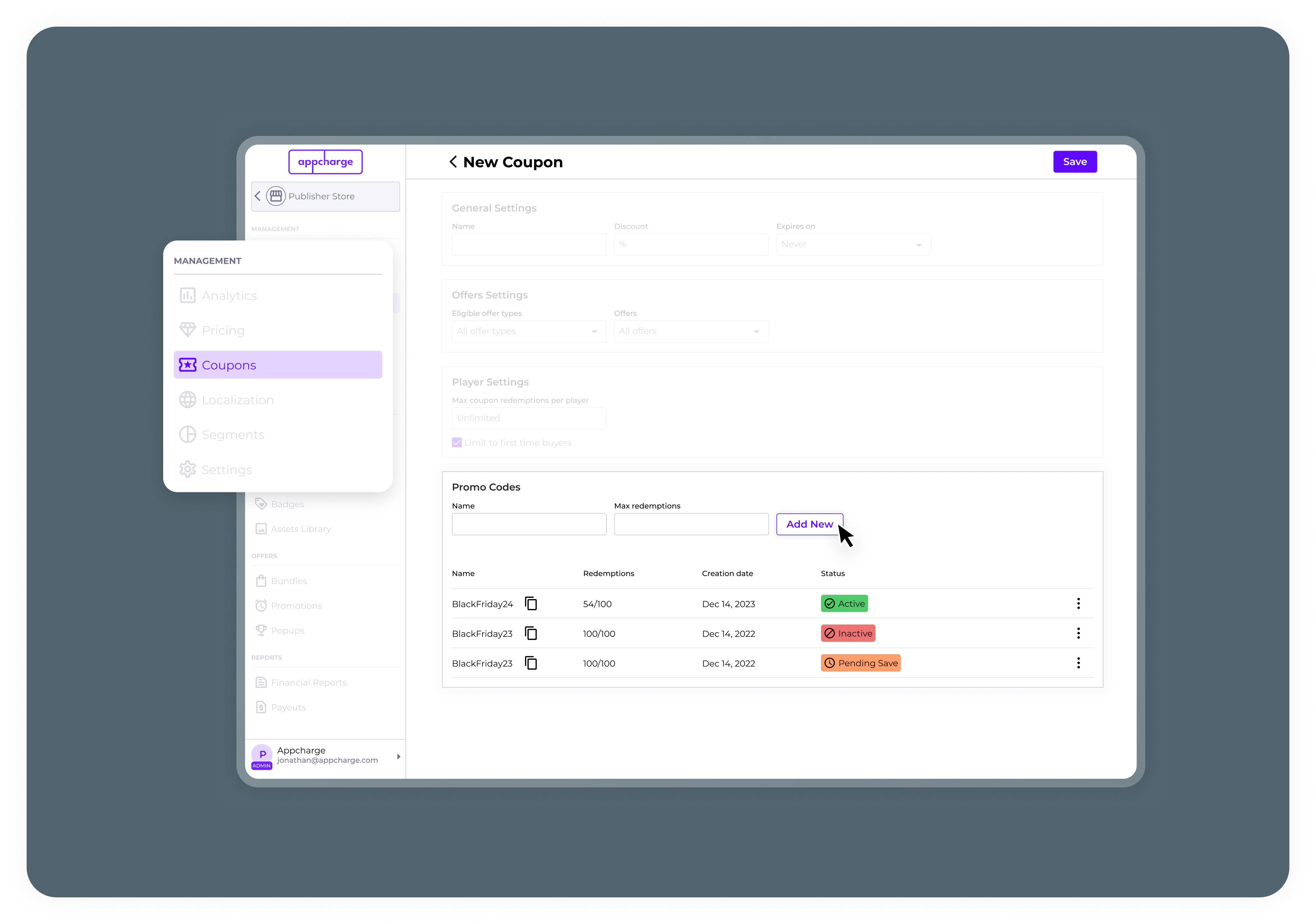
1. Go to the **Coupons** tab and click **Add New Coupon**.
2. In the **General Settings**, enter a name, define the discount percentage, and set an expiration date.
3. In the **Offers Settings**, select the offers the coupon will apply to.
4. Fill out the **Player Settings** section as needed.
5. In **Allowed Players**, configure player restrictions:
* Click **EXPORT CSV** in the **Allowed Players** section.
* Fill out the `PlayerID` column of the downloaded file.
* Upload the completed file using **IMPORT CSV**.
> **Important:** Player IDs must be added correctly in the designated column. If a player ID is misplaced, the system won't recognize it, and the player won't be able to redeem the coupon.
6. Add a promo code name and redemption limit in the **Promo Codes** Section.
> **Notes:**
>
> * At least one promo code must be added.
> * Promo codes cannot be edited after creation, only deactivated.
> * Promo codes will display a **Pending Save** status until the coupon configuration is saved.
 ## Activate or deactivate a promo code
To activate or deactivate a promo code:
1. Go to the **Coupons** tab.
2. Click the ellipsis next to the coupon and select **Edit**.
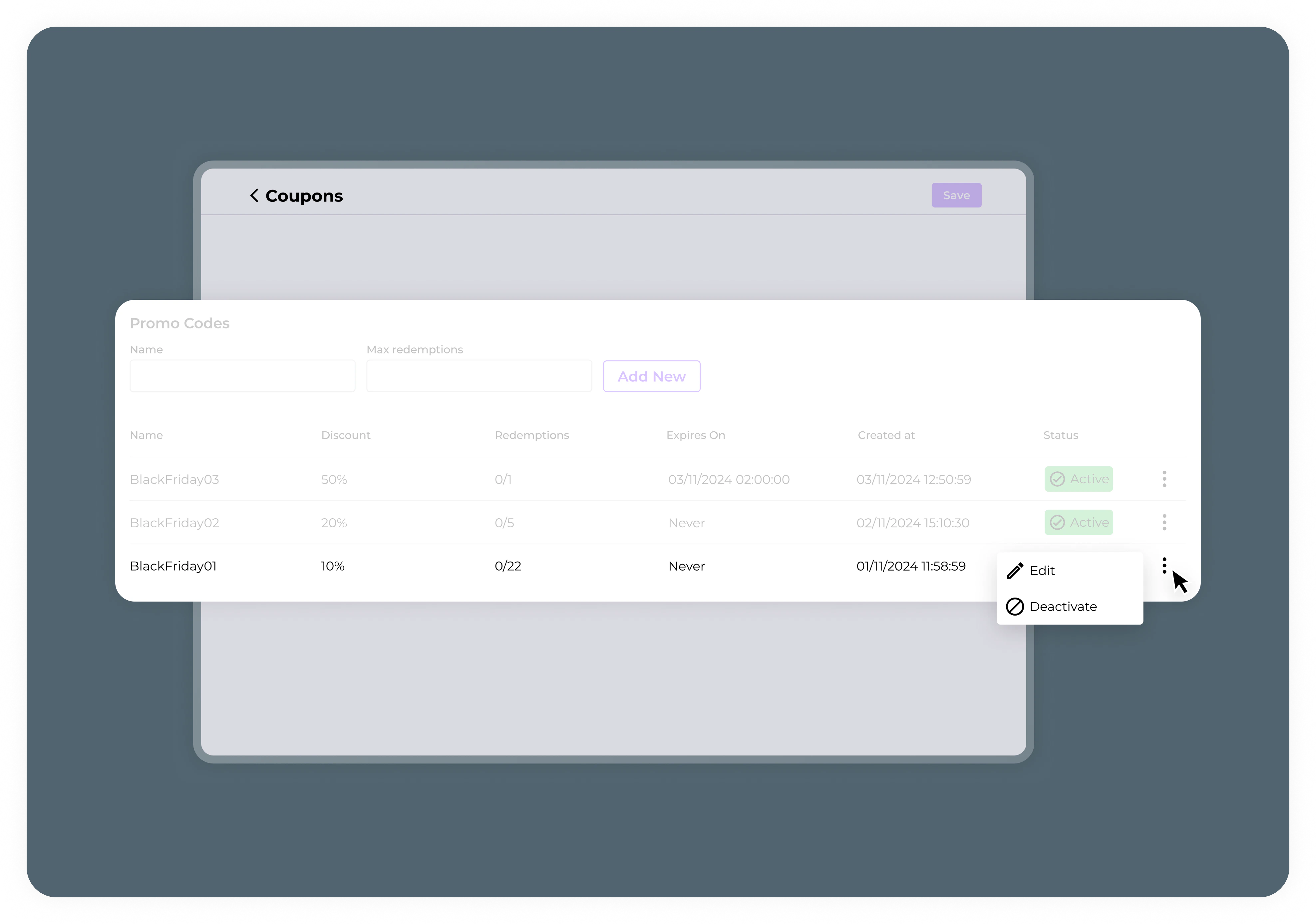
3. In the **Promo Codes** section, click the ellipsis next to the promo code.
4. Select **Activate** or **Deactivate**.
## Activate or deactivate a promo code
To activate or deactivate a promo code:
1. Go to the **Coupons** tab.
2. Click the ellipsis next to the coupon and select **Edit**.
3. In the **Promo Codes** section, click the ellipsis next to the promo code.
4. Select **Activate** or **Deactivate**.
 ## Edit a coupon
1. Go to the **Coupons** tab.
2. Click the ellipsis next to the coupon you want to edit, and select **Edit**.
3. Modify the coupon as necessary.
> \*\* Note:\*\* To update the list of allowed players, upload a new file using the **IMPORT CSV** button.
4. Click **Save** to apply the changes.
## Deactivate or activate a coupon
1. Go to the **Coupons** tab.
2. Click the ellipsis next to the coupon.
3. Select **Activate** or **Deactivate**.
## Edit a coupon
1. Go to the **Coupons** tab.
2. Click the ellipsis next to the coupon you want to edit, and select **Edit**.
3. Modify the coupon as necessary.
> \*\* Note:\*\* To update the list of allowed players, upload a new file using the **IMPORT CSV** button.
4. Click **Save** to apply the changes.
## Deactivate or activate a coupon
1. Go to the **Coupons** tab.
2. Click the ellipsis next to the coupon.
3. Select **Activate** or **Deactivate**.