> ## Documentation Index
> Fetch the complete documentation index at: https://docs.appcharge.com/llms.txt
> Use this file to discover all available pages before exploring further.
# Manage User Roles and Permissions
This article explains how to add users to your project in the Publisher Dashboard, assign roles and permissions, and update or remove existing users. Access to specific settings and actions depends on each user’s assigned role.
To view and manage user access to your Publisher Dashboard:
### Add a user
Only users with the **Administrator** role can add new users.
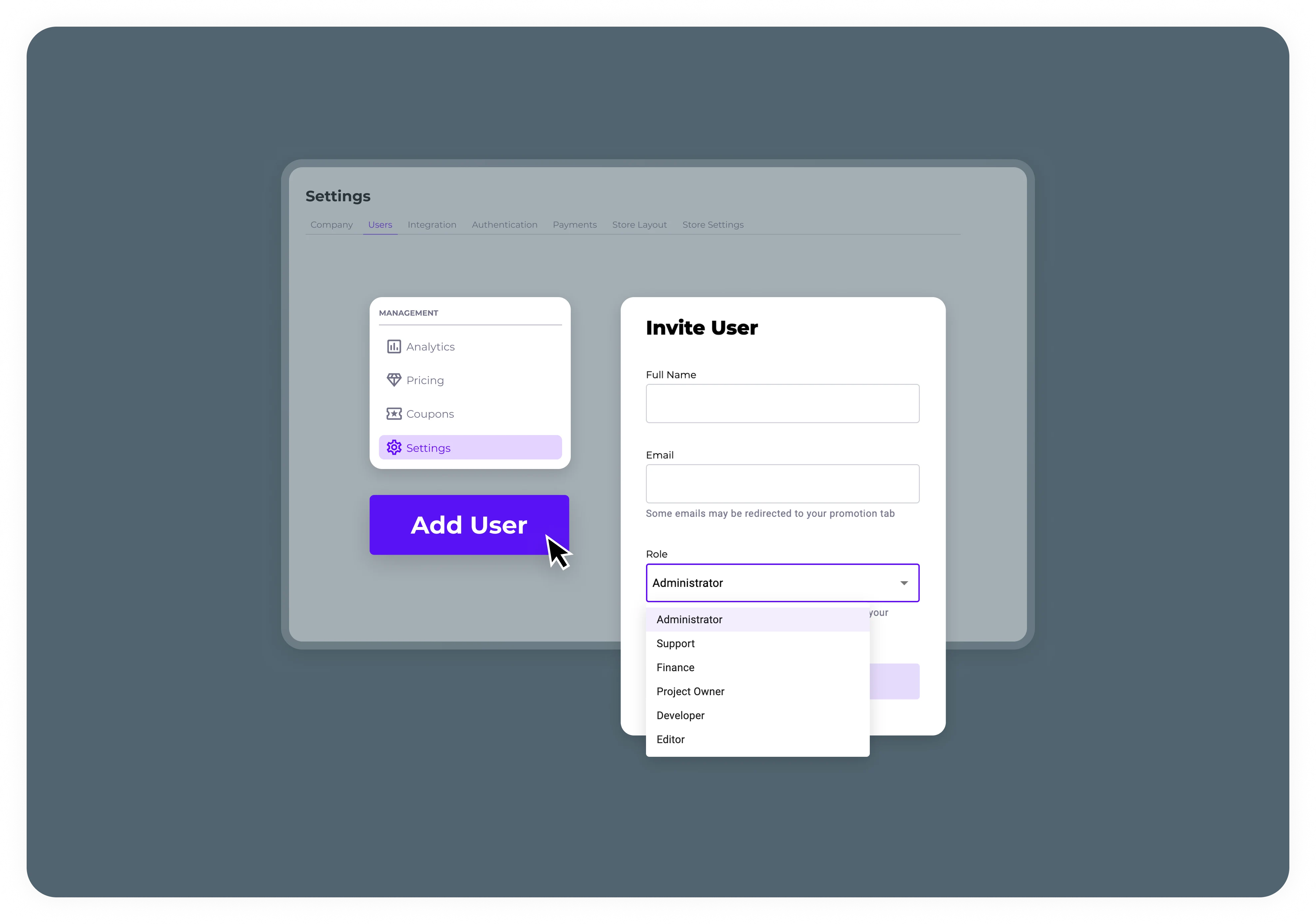
To add a new user to your project:
1. In the **Projects** section of the side bar menu, select the project to which you want to add the user.
2. In the sidebar menu, go to **Management > Settings**.
3. Go to the **Users** tab, and click **Add User**.
4. Fill out the full name and email address of the user you want to add, and then assign them a role.
5. Click **Send Invite** to send them an inivitation via email to join the project.
The user is added here with the status **Pending**. Once the user follows the steps in their email to accept the invitation, their status changes to **Active**.
 ### Edit a user's role
Only users with the **Administrator** role can edit a user's role.
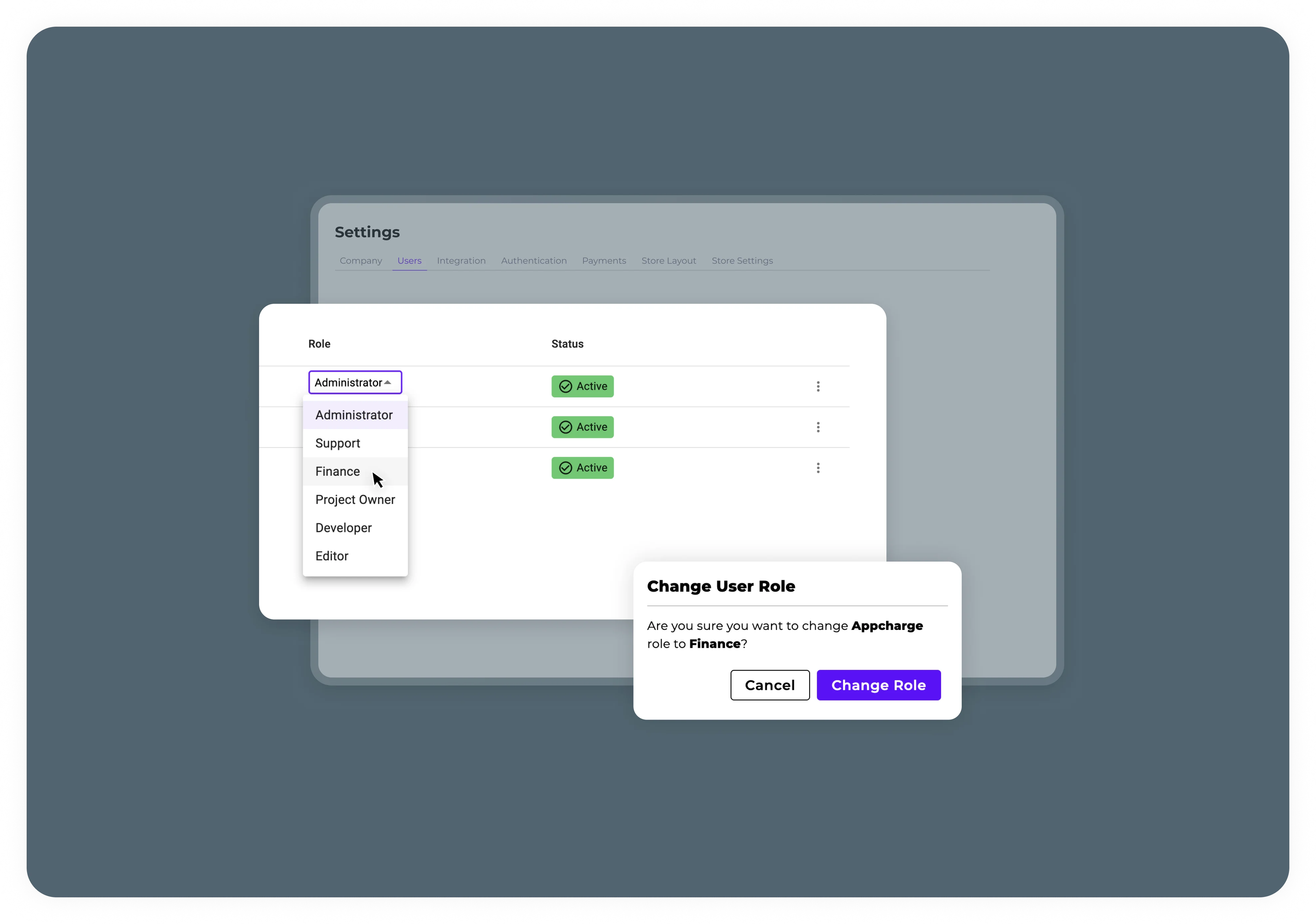
To edit a user's role:
1. In the **Projects** section of the side bar menu, select the project to which you want to add the user.
2. In the sidebar menu, go to **Management > Settings**.
3. Go to the **Users** tab, and find the user you want to update.
4. In the **Role** column, use the drop-down menu to select the new role you want to assign to this user.
5. Click **Change Role** to confirm the change.
### Edit a user's role
Only users with the **Administrator** role can edit a user's role.
To edit a user's role:
1. In the **Projects** section of the side bar menu, select the project to which you want to add the user.
2. In the sidebar menu, go to **Management > Settings**.
3. Go to the **Users** tab, and find the user you want to update.
4. In the **Role** column, use the drop-down menu to select the new role you want to assign to this user.
5. Click **Change Role** to confirm the change.
 ### Remove a user
Only users with the **Administrator** role can remove users from your project.
To remove a user from your project:
1. In the **Projects** section of the side bar menu, select the project to which you want to add the user.
2. In the sidebar menu, go to **Management > Settings**.
3. Go to the **Users** tab, and find the user you want to remove.
4. Click the ellipsis, and click **Delete**.
5. Click **Delete** to confirm and remove the user.
### Roles and permissions
Users can be added to more than one project, allowing them access based on the roles assigned. Each project within a company can have one or several administrators.
Administrators have the authority to add users, assign roles, and manage access across the projects they oversee.
Users can have different roles and permissions in each project they are included in.
Here is a table summarizing the roles and permissions in the Publisher Dashboard. The rows correspond to the permissions, and the columns to the roles.
| Permission | Administrator | Developer | Project Owner | Operations/Editor | Finance | Support |
| -------------------- | --------------------- | --------------------- | --------------------- | ----------------- | --------------- | -------------- |
| **Analytics** | View | None | View | None | View | None |
| **Asset Library** | Manage | Manage | Manage | Manage | None | None |
| **Authentication** | Manage | Manage | Manage | None | None | None |
| **Badges** | Manage | Manage | Manage | Manage | None | View |
| **Builder** | Manage | Manage | Manage | None | None | None |
| **Bundles** | Manage | Manage | Manage | Manage | None | View |
| **Checkout Links** | Manage | Manage | Manage | Manage | None | View |
| **Company** | Update details + View | Update details + View | Update details + View | Home page only | Home page only | Home page only |
| **Coupons** | Manage | None | Manage | Manage | None | None |
| **Event Center** | Manage | Manage | Manage | View | View | View |
| **Evidence** | Submit + View | None | Submit + View | None | Submit + View | Submit + View |
| **Financial Report** | Generate + View | None | Generate + View | None | Generate + View | None |
| **Integration** | Manage | Manage | Manage | None | None | None |
| **Offer Design** | Manage | Manage | Manage | Manage | None | View |
| **Offers** | Manage | Manage | Manage | Manage | None | View |
| **Orders** | Refund + View | None | Refund + View | None | Refund + View | Refund + View |
| **Payouts** | View | None | View | None | View | None |
| **Popups** | Manage | Manage | Manage | Manage | None | View |
| **Portal Content** | Manage | Manage | Manage | Manage | None | None |
| **Portal Pages** | Manage | Manage | Manage | Manage | None | None |
| **Pricing** | Manage\* | View | Manage\* | View | View | View |
| **Products** | Manage | Manage | Manage | Manage | None | View |
| **Promotions** | Manage | Manage | Manage | Manage | None | View |
| **Rolling** | Manage | Manage | Manage | Manage | None | View |
| **Users** | Manage | None | None | None | None | None |
The **Rounding Rules** and **Display Tax-Inclusive Prices** sections under the **Pricing** tab have View access.
### Remove a user
Only users with the **Administrator** role can remove users from your project.
To remove a user from your project:
1. In the **Projects** section of the side bar menu, select the project to which you want to add the user.
2. In the sidebar menu, go to **Management > Settings**.
3. Go to the **Users** tab, and find the user you want to remove.
4. Click the ellipsis, and click **Delete**.
5. Click **Delete** to confirm and remove the user.
### Roles and permissions
Users can be added to more than one project, allowing them access based on the roles assigned. Each project within a company can have one or several administrators.
Administrators have the authority to add users, assign roles, and manage access across the projects they oversee.
Users can have different roles and permissions in each project they are included in.
Here is a table summarizing the roles and permissions in the Publisher Dashboard. The rows correspond to the permissions, and the columns to the roles.
| Permission | Administrator | Developer | Project Owner | Operations/Editor | Finance | Support |
| -------------------- | --------------------- | --------------------- | --------------------- | ----------------- | --------------- | -------------- |
| **Analytics** | View | None | View | None | View | None |
| **Asset Library** | Manage | Manage | Manage | Manage | None | None |
| **Authentication** | Manage | Manage | Manage | None | None | None |
| **Badges** | Manage | Manage | Manage | Manage | None | View |
| **Builder** | Manage | Manage | Manage | None | None | None |
| **Bundles** | Manage | Manage | Manage | Manage | None | View |
| **Checkout Links** | Manage | Manage | Manage | Manage | None | View |
| **Company** | Update details + View | Update details + View | Update details + View | Home page only | Home page only | Home page only |
| **Coupons** | Manage | None | Manage | Manage | None | None |
| **Event Center** | Manage | Manage | Manage | View | View | View |
| **Evidence** | Submit + View | None | Submit + View | None | Submit + View | Submit + View |
| **Financial Report** | Generate + View | None | Generate + View | None | Generate + View | None |
| **Integration** | Manage | Manage | Manage | None | None | None |
| **Offer Design** | Manage | Manage | Manage | Manage | None | View |
| **Offers** | Manage | Manage | Manage | Manage | None | View |
| **Orders** | Refund + View | None | Refund + View | None | Refund + View | Refund + View |
| **Payouts** | View | None | View | None | View | None |
| **Popups** | Manage | Manage | Manage | Manage | None | View |
| **Portal Content** | Manage | Manage | Manage | Manage | None | None |
| **Portal Pages** | Manage | Manage | Manage | Manage | None | None |
| **Pricing** | Manage\* | View | Manage\* | View | View | View |
| **Products** | Manage | Manage | Manage | Manage | None | View |
| **Promotions** | Manage | Manage | Manage | Manage | None | View |
| **Rolling** | Manage | Manage | Manage | Manage | None | View |
| **Users** | Manage | None | None | None | None | None |
The **Rounding Rules** and **Display Tax-Inclusive Prices** sections under the **Pricing** tab have View access.