> ## Documentation Index
> Fetch the complete documentation index at: https://docs.appcharge.com/llms.txt
> Use this file to discover all available pages before exploring further.
# About Offers
Offers are promotional tools for selling digital products to players for real currency. The web store supports several offer types, each suited to a different sales strategy.
Offers appear to players when they are active and the player matches any configured segment or personalization rules. You can use these rules to control which players see each offer.
The types of offers we provide include:
## Offer types
Supported offer types:
### Special Offers
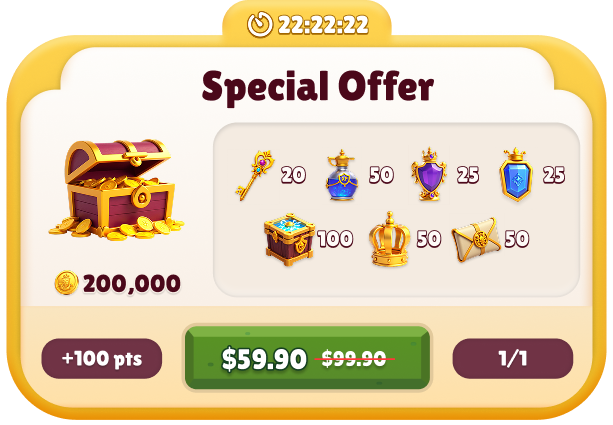
Promotions featuring one or more products that can be scheduled to appear at specific times. These offers typically appear in a rotating gallery at the top of the web store, and are often used to highlight time-limited deals.
 ### Bundles
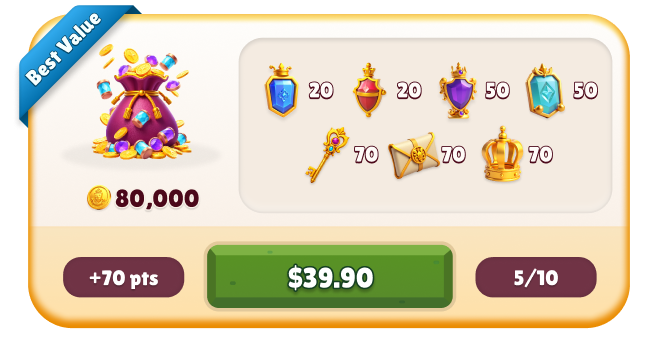
Offers that include one or more products sold at a discounted rate or with added value. Unlike special offers, bundles can't be scheduled in advance and remain active until disabled.
### Bundles
Offers that include one or more products sold at a discounted rate or with added value. Unlike special offers, bundles can't be scheduled in advance and remain active until disabled.
 ## Daily Bonuses
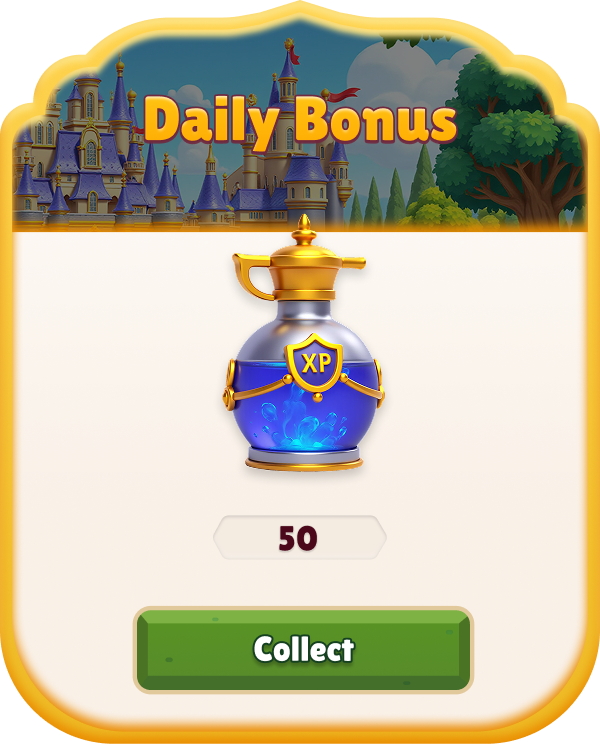
Free rewards that appear as popups when players open the web store, encouraging them to return regularly.
## Daily Bonuses
Free rewards that appear as popups when players open the web store, encouraging them to return regularly.
 ## Reward Calendars
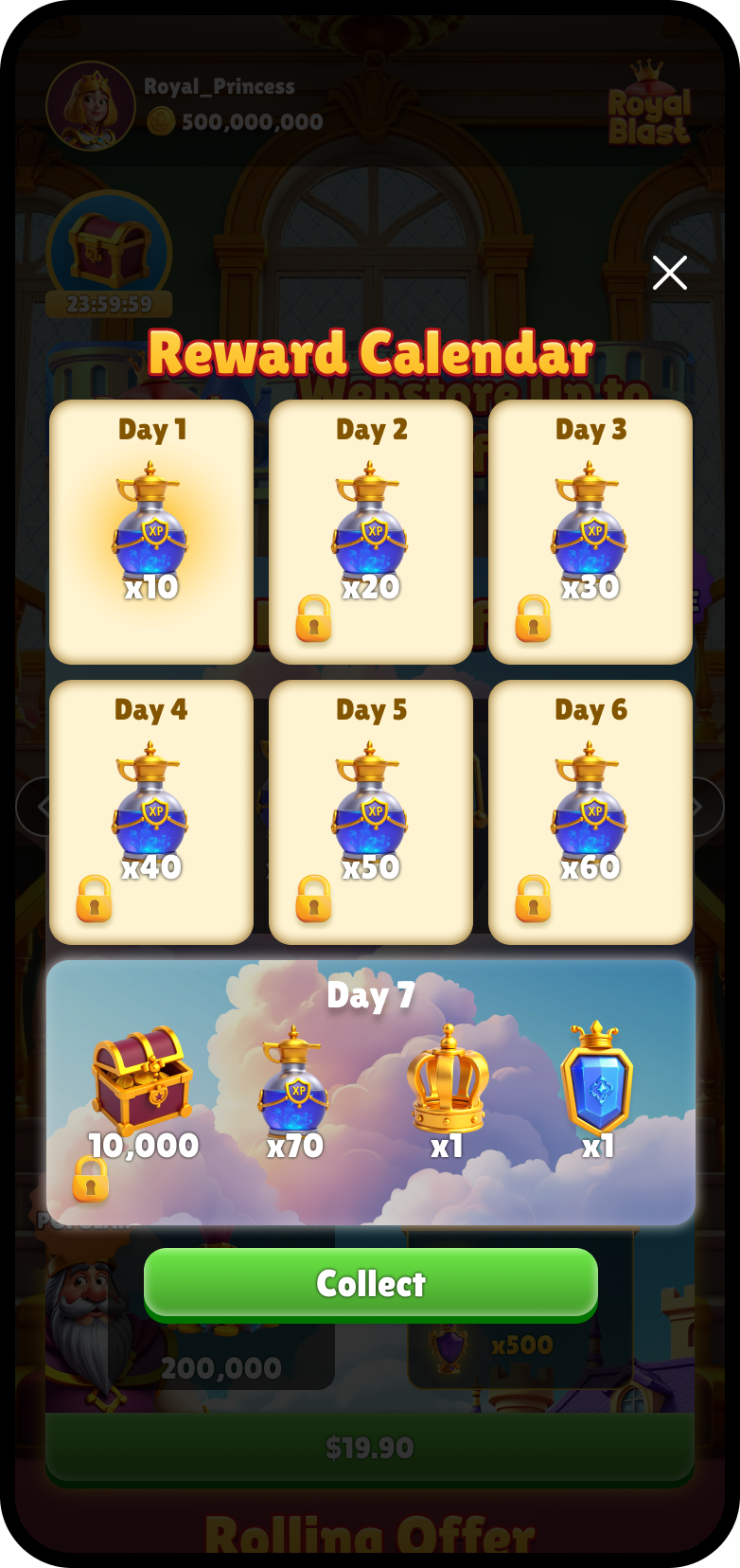
7-day calendar popup offers that show players a week's worth of upcoming rewards and let them collect the current day's reward. Reward Calendars encourage players to return on consecutive days by showing what they can earn now, what they can earn later, and when the next reward becomes available.
## Reward Calendars
7-day calendar popup offers that show players a week's worth of upcoming rewards and let them collect the current day's reward. Reward Calendars encourage players to return on consecutive days by showing what they can earn now, what they can earn later, and when the next reward becomes available.
 ## Rolling Offers
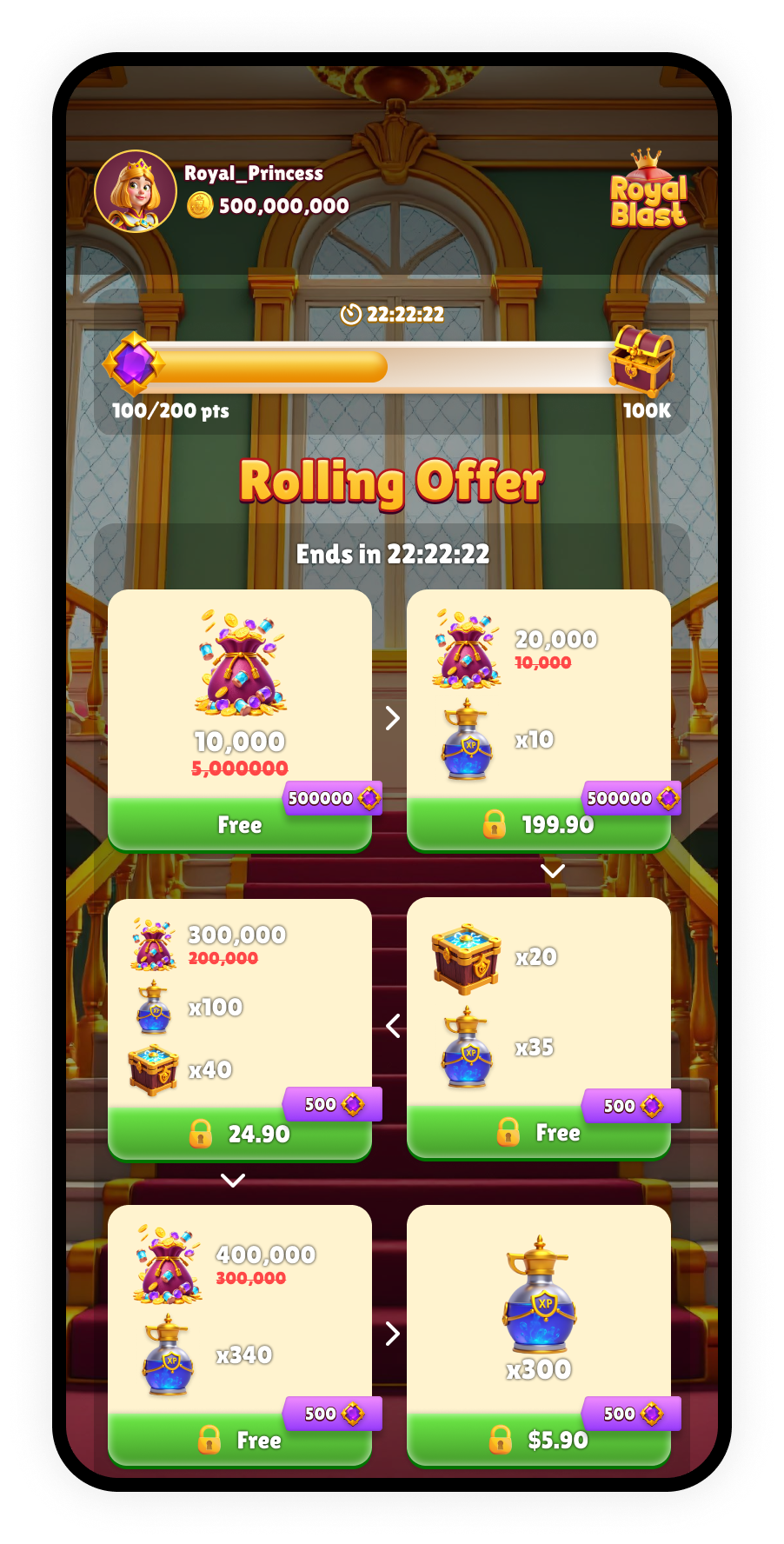
Rolling Offers unlock new sub-offers as players progress. Each offer reveals the next, motivating repeat interactions before the promotion resets. These time-sensitive offers are scheduled, with a countdown timer showing how long the current offer is active. If players don't unlock all the offers before time runs out, the sequence resets.
## Rolling Offers
Rolling Offers unlock new sub-offers as players progress. Each offer reveals the next, motivating repeat interactions before the promotion resets. These time-sensitive offers are scheduled, with a countdown timer showing how long the current offer is active. If players don't unlock all the offers before time runs out, the sequence resets.
 ## Triggered Popups
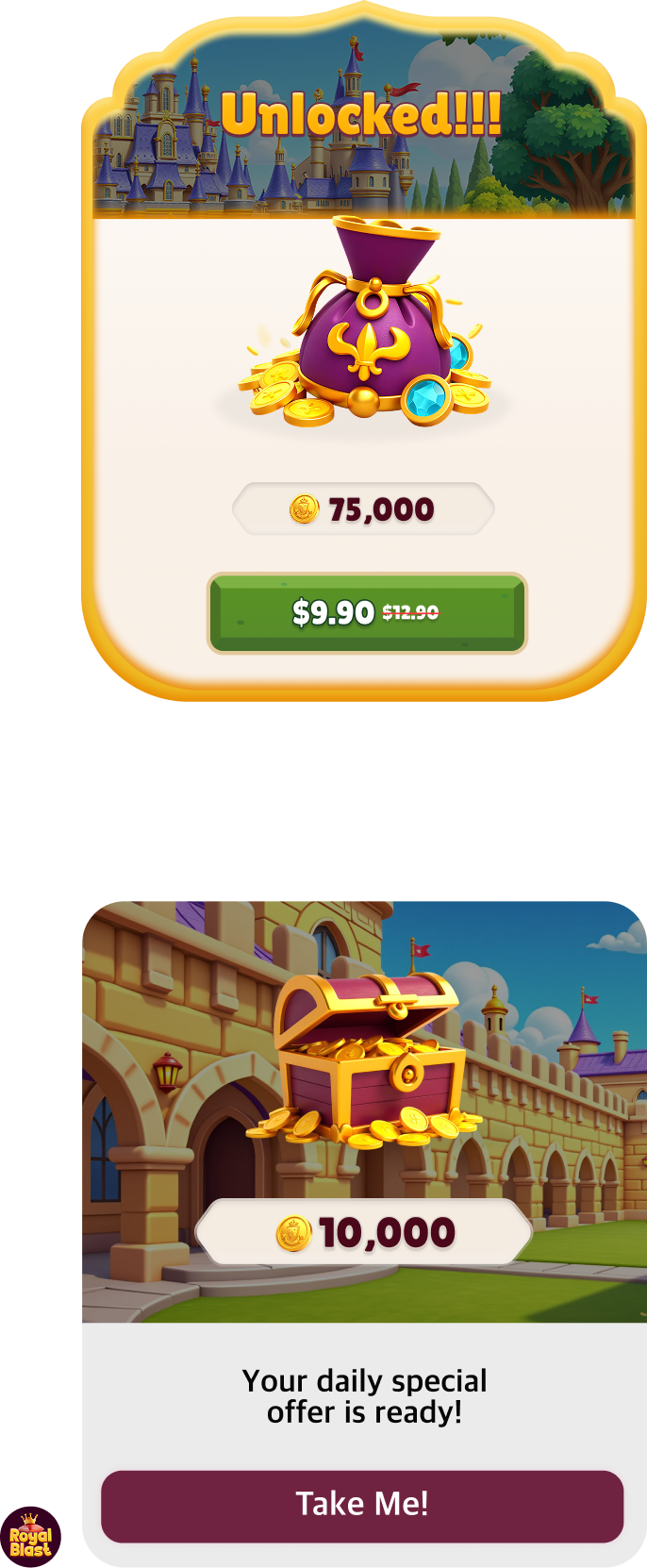
Popups are promotional offers that appear as a modal in the web store. They are useful when you want to direct a player's attention to a specific reward or follow-up offer.
### Post Purchase
Special incentives appear as popups. They are offered immediately after a player makes a purchase to drive further engagement.
## Triggered Popups
Popups are promotional offers that appear as a modal in the web store. They are useful when you want to direct a player's attention to a specific reward or follow-up offer.
### Post Purchase
Special incentives appear as popups. They are offered immediately after a player makes a purchase to drive further engagement.
 ### Store Refresh
Special incentives appear as popups. They are offered immediately after a player makes a purchase to drive further engagement.
## Checkout Link Offers
A personalized offer delivered directly to players via a deeplink, taking them straight to the checkout with the offer preloaded. The link can be shared through any distribution platform, such as social media, DMs, and email. Checkout links can be used for various purposes, including sending unique deals to a VIP player for a more personalized experience.
### Store Refresh
Special incentives appear as popups. They are offered immediately after a player makes a purchase to drive further engagement.
## Checkout Link Offers
A personalized offer delivered directly to players via a deeplink, taking them straight to the checkout with the offer preloaded. The link can be shared through any distribution platform, such as social media, DMs, and email. Checkout links can be used for various purposes, including sending unique deals to a VIP player for a more personalized experience.
 ### Progress Bars
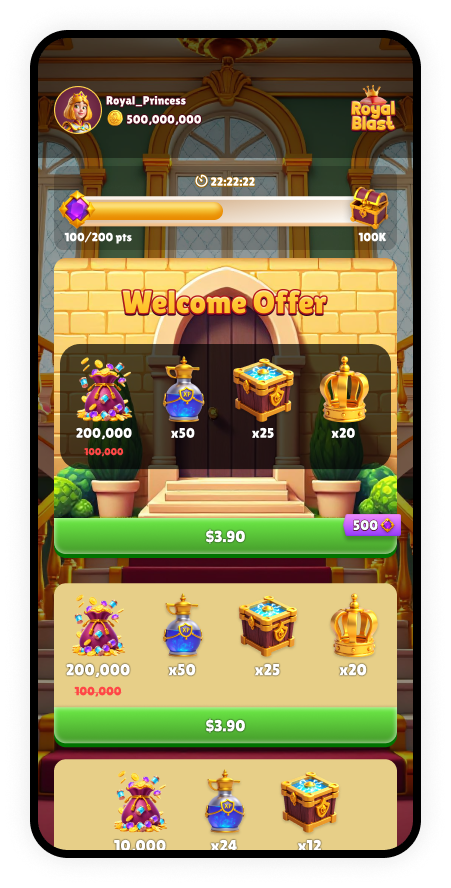
A type of offer that works alongside other offers to encourage players to make purchases. A Progress Bar represents a mission with a defined number of points needed to earn a reward. Players earn points by purchasing other offers or collecting free rewards, and the bar fills to show their progress. When complete, they receive their reward, the bar resets, and they automatically advance to the next mission if available.
### Progress Bars
A type of offer that works alongside other offers to encourage players to make purchases. A Progress Bar represents a mission with a defined number of points needed to earn a reward. Players earn points by purchasing other offers or collecting free rewards, and the bar fills to show their progress. When complete, they receive their reward, the bar resets, and they automatically advance to the next mission if available.
 ## Add an offer to your web store
After you choose an offer type, follow the process below in order before creating the offer in your web store:
1. [Design the offer](./offer-design/design-an-offer).
2. [Create products](./offer-design/add-a-product) for the offer.
3. (Optional) [Create a badge](./offer-design/add-a-badge) to add to the offer.
4. Create the specific offer, adding products and any badges to it.
## Add an offer to your web store
After you choose an offer type, follow the process below in order before creating the offer in your web store:
1. [Design the offer](./offer-design/design-an-offer).
2. [Create products](./offer-design/add-a-product) for the offer.
3. (Optional) [Create a badge](./offer-design/add-a-badge) to add to the offer.
4. Create the specific offer, adding products and any badges to it.