> ## Documentation Index
> Fetch the complete documentation index at: https://docs.appcharge.com/llms.txt
> Use this file to discover all available pages before exploring further.
# Create and Manage a Checkout Link Offer
This article explains how to create and manage a checkout link offer in the Publisher Dashboard. Alternatively, you can create and update checkout link offers using the [Checkout Link Offers API](/../../api-reference/webstore/offers-v2/checkout-link-offers/introduction).
If you're using the [Personalization](../../personalization/about-personalization) feature to send offers to players, make sure to include the checkout link offer in the [Personalization API](/../../api-reference/webstore/personalization/introduction) payload. Although this offer doesn't appear in the web store, it is still valid and must be explicitly sent to the player through the API.
## Prerequisites
Before creating a checkout link offer, make sure [Game Redirect Login](../../player-authentication/game-redirect-login/set-up-game-redirect-login) is set up.
If you're using the legacy [JWT authentication method](./use-jwt-method), see the dedicated article for setup instructions.
## Create a checkout link offer
To create a checkout link offer:
1. Go to **Offers > Checkout Links** and click **Create New Link**.
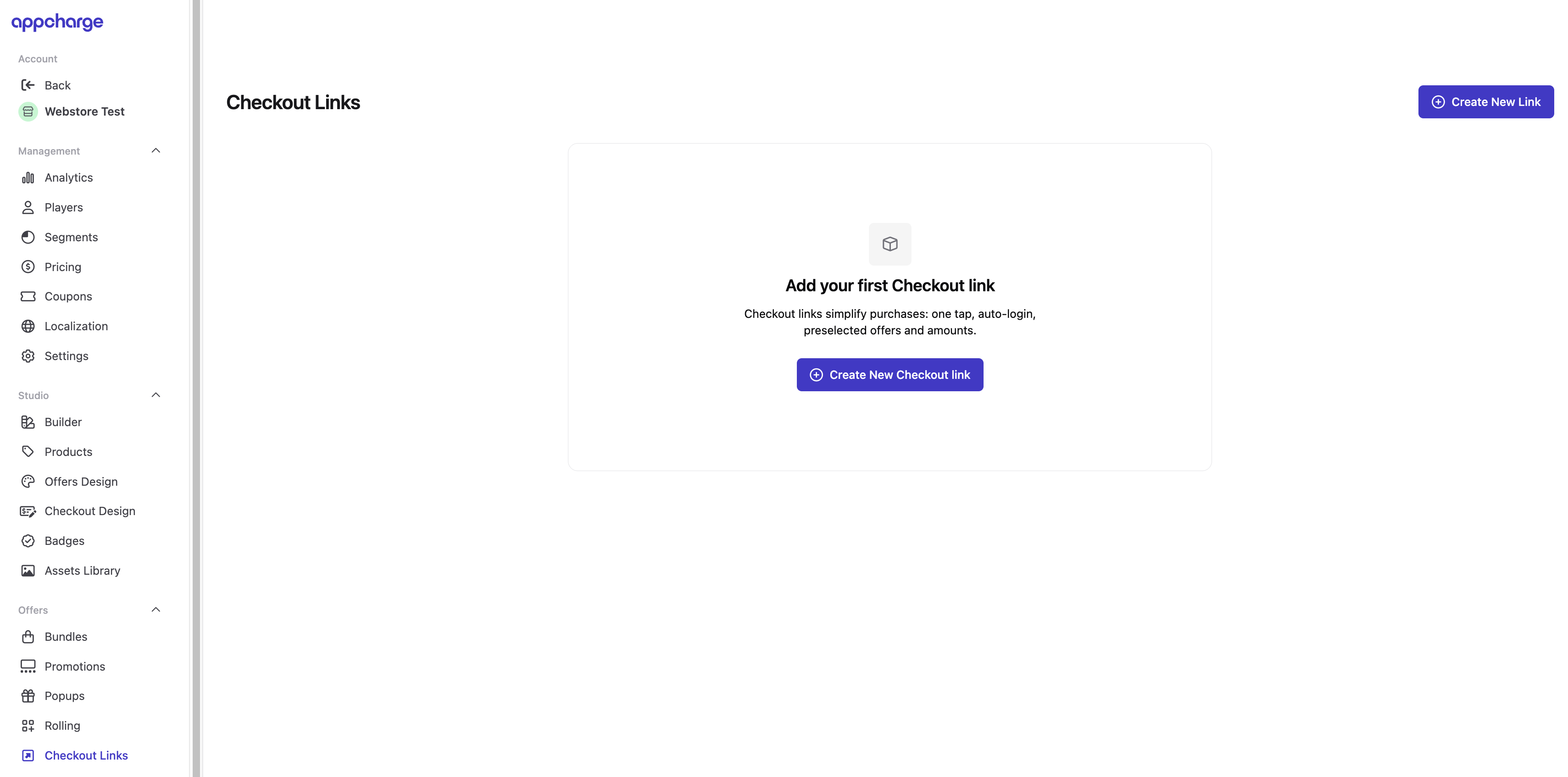 2. In the **Settings** tab, provide the offer details, including price, products, and quantity.
3. Go to the **Schedule** tab to manage when the checkout link offer is available and how often it can be purchased by each player. You'll find three scheduling options:
* **Permanent**: The offer is always available, but you can limit how many times each player can purchase it.
* **Intervals:** The offer will appear according to the set time intervals. If the offer link is opened outside these intervals, it will not be available, and the player will have the option to return to the web store or game.
* **Schedule:** The offer will be available for purchase in specific quantities only during the time frames you define. If the offer link is opened outside these time periods, it will be unavailable, and the player will have the option to return to the web store or the game.
2. In the **Settings** tab, provide the offer details, including price, products, and quantity.
3. Go to the **Schedule** tab to manage when the checkout link offer is available and how often it can be purchased by each player. You'll find three scheduling options:
* **Permanent**: The offer is always available, but you can limit how many times each player can purchase it.
* **Intervals:** The offer will appear according to the set time intervals. If the offer link is opened outside these intervals, it will not be available, and the player will have the option to return to the web store or game.
* **Schedule:** The offer will be available for purchase in specific quantities only during the time frames you define. If the offer link is opened outside these time periods, it will be unavailable, and the player will have the option to return to the web store or the game.
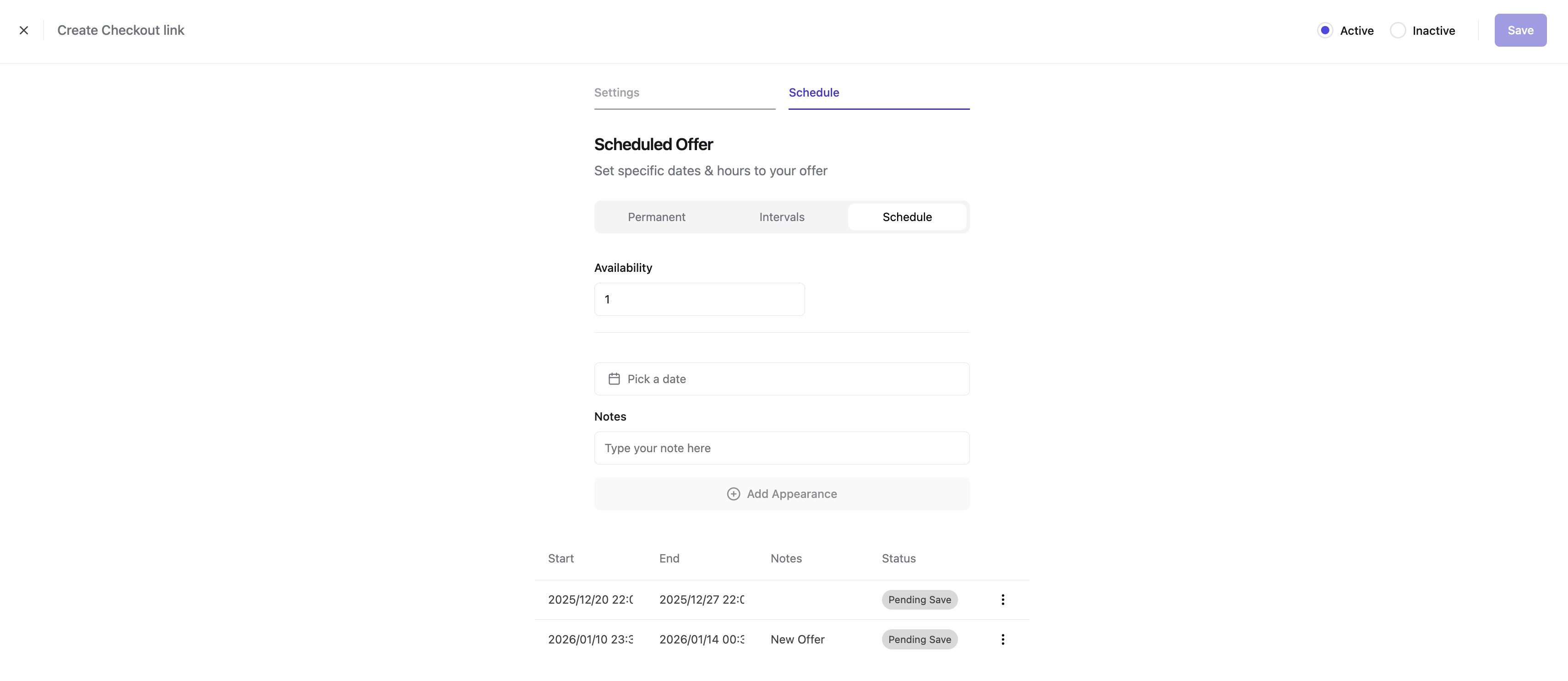 4. Once you’ve filled in the necessary information, click **Save** to create the deeplink.
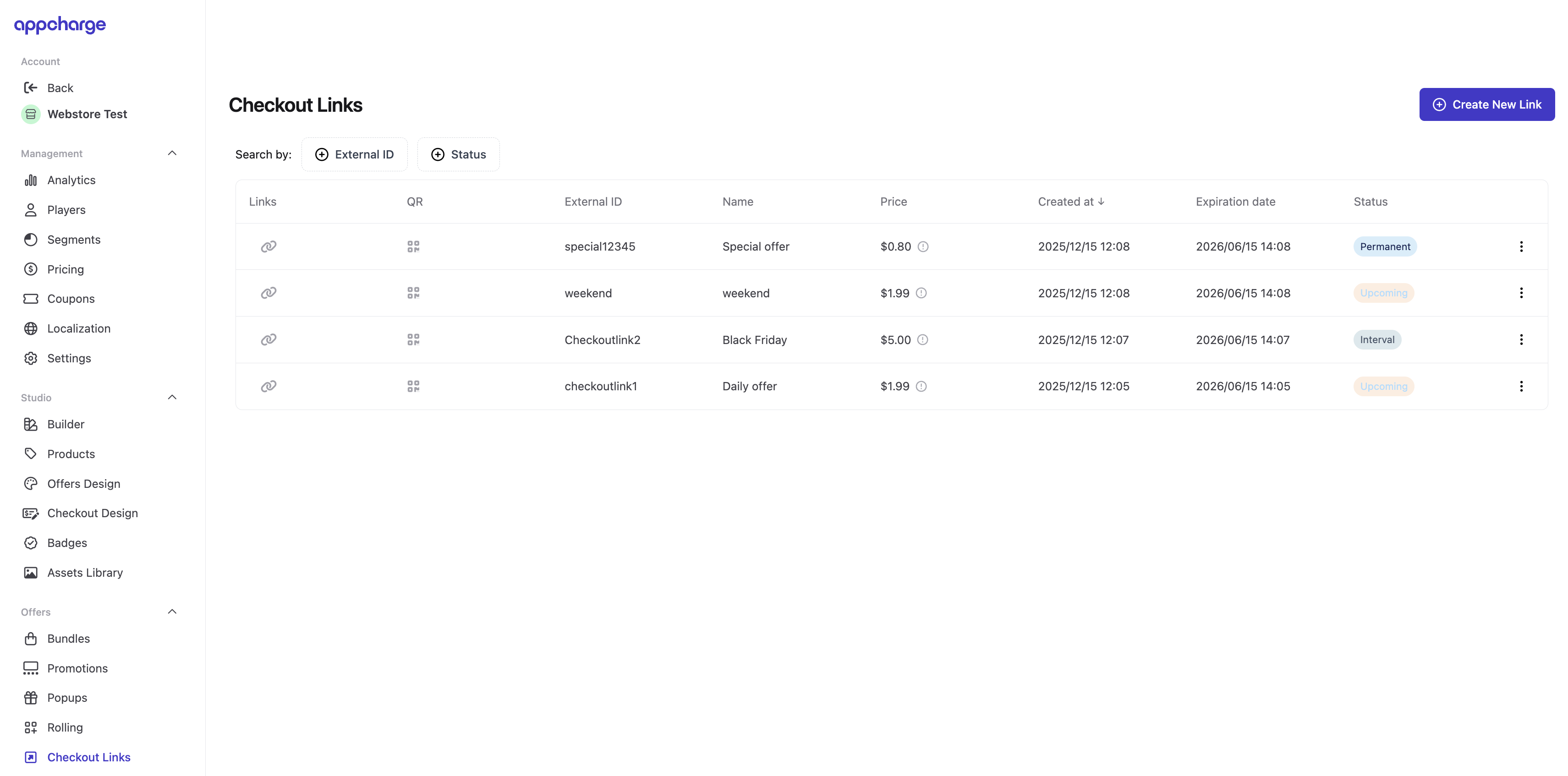
5. Return to the **Checkout Links** page and choose how you want to share the offer with players:
* Click on the link icon to copy the deeplink to your clipboard.
* Click the QR code image to download the QR code to your computer.
If you're using the legacy JWT method, follow the steps in the [Use JWT to Create a Checkout Link Offer](./use-jwt-method#make-the-checkout-link-functional) article to secure the deeplink with a signed JWT.
4. Once you’ve filled in the necessary information, click **Save** to create the deeplink.
5. Return to the **Checkout Links** page and choose how you want to share the offer with players:
* Click on the link icon to copy the deeplink to your clipboard.
* Click the QR code image to download the QR code to your computer.
If you're using the legacy JWT method, follow the steps in the [Use JWT to Create a Checkout Link Offer](./use-jwt-method#make-the-checkout-link-functional) article to secure the deeplink with a signed JWT.
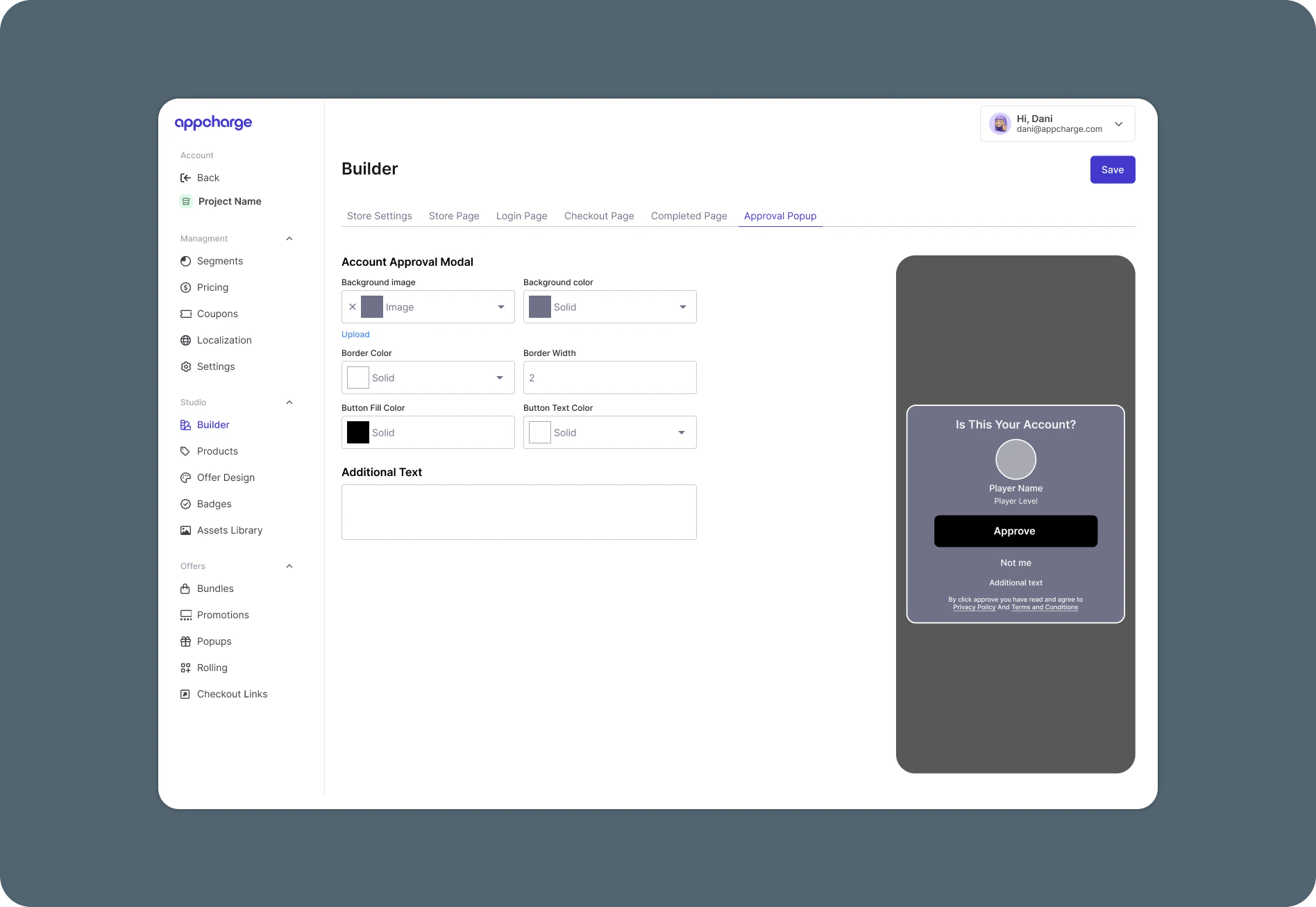
 6. The following step is only relevant if you're using the legacy JWT method.
If you'd like to customize the approval request, go to the **Approval Request** tab in the **Builder** tab. If you choose not to customize the popup, the default Appcharge configuration is displayed.
6. The following step is only relevant if you're using the legacy JWT method.
If you'd like to customize the approval request, go to the **Approval Request** tab in the **Builder** tab. If you choose not to customize the popup, the default Appcharge configuration is displayed.
 ## Edit a checkout link offer
To edit an existing checkout link offer:
1. Go to the **Checkout Links** tab.
2. Click the ellipsis next to the link you want to edit, then click **Edit**.
3. Modify the checkout link as necessary. For example, update the price or change the schedule.
4. Click **Save** to apply the changes.
## Activate or deactivate a checkout link offer
To activate or deactivate a checkout link offer:
1. Go to the **Checkout Links** tab.
2. Click the ellipsis next to the link you want to activate or deactivate, and then click **Activate** or **Deactivate**.
## Edit a checkout link offer
To edit an existing checkout link offer:
1. Go to the **Checkout Links** tab.
2. Click the ellipsis next to the link you want to edit, then click **Edit**.
3. Modify the checkout link as necessary. For example, update the price or change the schedule.
4. Click **Save** to apply the changes.
## Activate or deactivate a checkout link offer
To activate or deactivate a checkout link offer:
1. Go to the **Checkout Links** tab.
2. Click the ellipsis next to the link you want to activate or deactivate, and then click **Activate** or **Deactivate**.
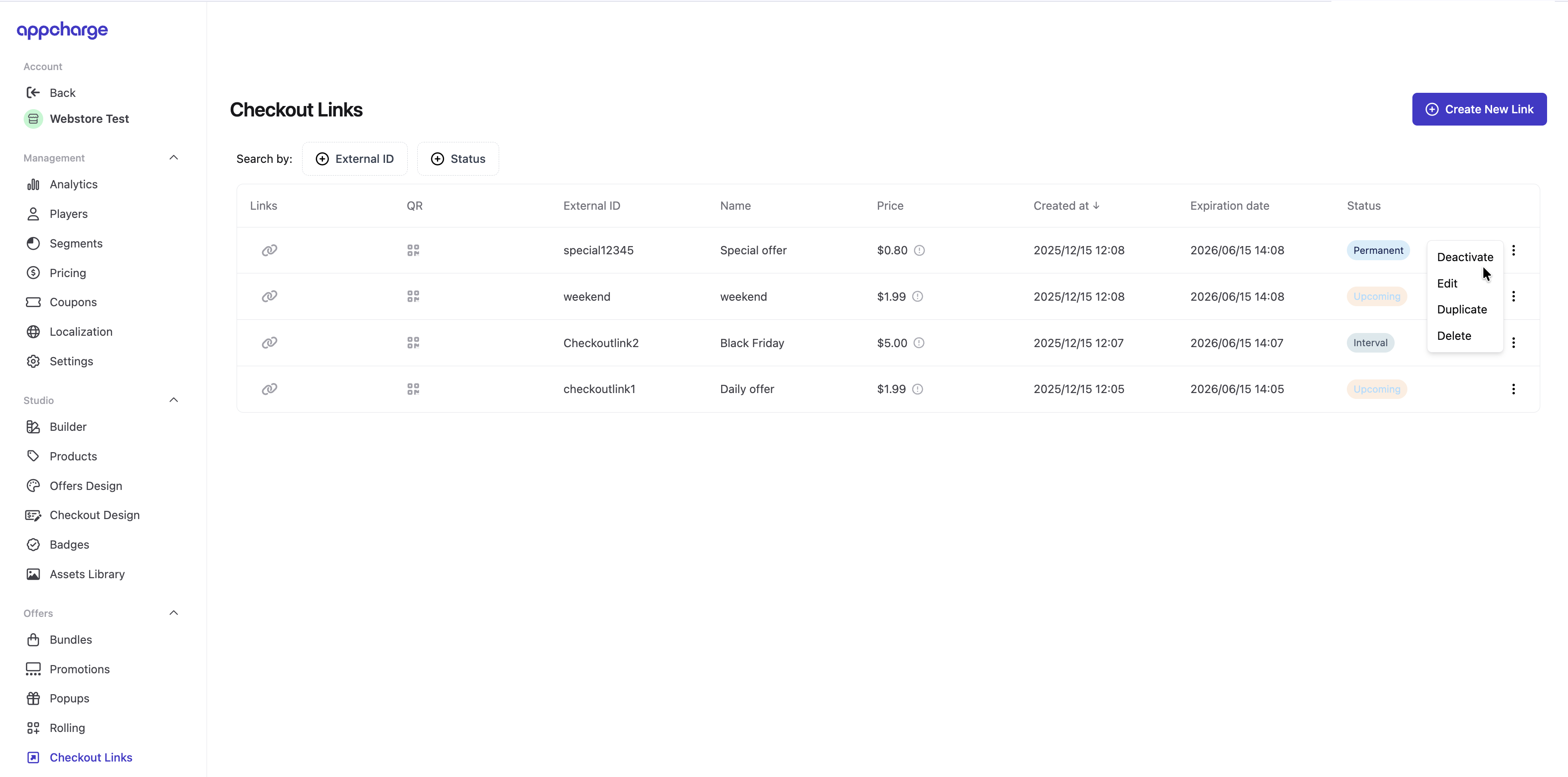 ## Delete a checkout link offer
To permanently delete a checkout link offer:
1. Go to the **Checkout Links** tab.
2. Click the ellipsis next to the link you want to delete, and then click **Delete**.
## Delete a checkout link offer
To permanently delete a checkout link offer:
1. Go to the **Checkout Links** tab.
2. Click the ellipsis next to the link you want to delete, and then click **Delete**.