> ## Documentation Index
> Fetch the complete documentation index at: https://docs.appcharge.com/llms.txt
> Use this file to discover all available pages before exploring further.
# High-Level Flow
This guide walks you through each phase of the Appcharge Web Store integration, from understanding the Web Store Solution and completing core integration steps to leveraging Performance Analytics for monitoring player activity. Once your Web Store is configured, Appcharge Checkout is seamlessly integrated, providing a comprehensive solution for publishers. At the end of the guide, you’ll find Extended Web Store Features to enhance and further customize your setup.
***
# Understanding the Web Store Solution
Appcharge helps you create a web store that integrates seamlessly with your game and reflects your brand. It offers customizable monetization features to showcase offers, engage players, and support your revenue goals.
### 1. Choose a Store Personalization Model
Choose between using the Offers List or Segments for personalizing your store’s offers. Refer to the [Web Store Personalization Models guide](./personalization/choose-a-personalization-model) for details.
### 2. Explore the Publisher Dashboard
Familiarize yourself with the Publisher Dashboard, as you will use it to configure and manage your store. Visit the [Publisher Dashboard guide](../publisher-dashboard/about-the-publisher-dashboard) for more details.
***
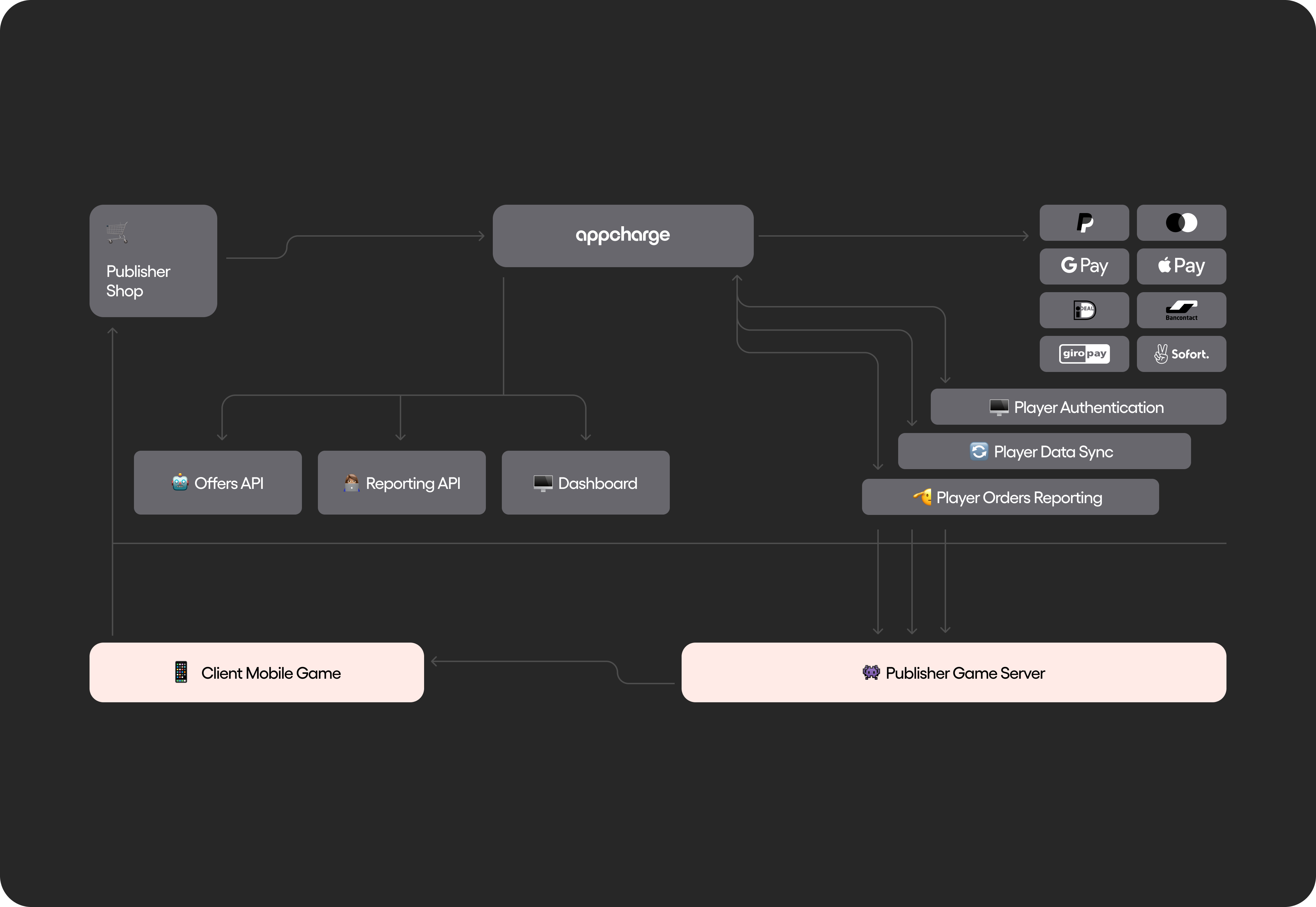
# High-Level Flow Visual
 ***
# Steps To Go Live
### 1. Design Your Web Store
Create a unique, user-friendly design for your web store. We offer resources to help build a self-serve, personalized store experience:
* [Setup your Store Theme](./../webstore/design/choose-a-theme)
* [Setup your Assets Library](../../guides/publisher-dashboard/add-an-asset)
* [Setup your Products](./../webstore/design/add-a-product)
* [Setup your Offer Design](./../webstore/design/design-an-offer)
* [Setup your Badges](./../webstore/design/add-a-badge)
* [Setup your Banner](./../webstore/design/add-a-banner)
### 2. Set Up Your Offers
Configure special offers, bundles, and popups such as daily bonuses. Use the dashboard or API for setup, depending on your chosen personalization model (Offers List or Segments).
* **Special Offers and Bundles:**
* [Guide](./../webstore/offers/special-offers/about-special-offers) - Steps for creating special offers and bundles in the Dashboard.
* [API Reference](../../api-reference/webstore/offers-v2/special-offers/introduction) - API for setting up special offers and bundles.
* **Popups:**
* [Guide](./../webstore/offers/popups/about-popups) - Steps for creating popups in the Dashboard.
* [API Reference](../../api-reference/webstore/offers-v2/popups/daily-bonuses/introduction) - API for setting daily bonuses.
* [API Reference](../../api-reference/webstore/offers-v2/popups/post-purchase-popups/introduction) - API for setting post purchase popups.
### 3. Review Session Metadata Documentation
Utilize session metadata for tracking and managing store interactions.
* [Session Metadata](../../api-reference/about-session-metadata) - for managing player sessions.
### 4. Set Up Player Authentication
Secure your web store with player authentication
* [Player Authentication Guide](./player-authentication/about-player-authentication) - Steps for setting up player authentication.
* [Player Authentication Webhook](../../api-reference/webstore/player-authentication/player-authentication-webhook) - Webhook for player login and verification.
* [Passwordless OTP Authentication](./player-authentication/game-redirect-login/about-game-redirect-login) - Setup for OTP-based login.
* [Pre-Authenticated Login](../../api-reference/webstore/player-authentication/preauthenticated-login/preauthenticated-login-webhook) - OTP login with deeplinks.
### 5. Set Up Personalization
Synchronize player data based on your chosen personalization model (Offers List or Segments).
* [Personalization Guide](./personalization/about-personalization) - Understand how personalization works.
* [Personalization API](../../api-reference/webstore/personalization/introduction) - Webhook which you will later add to the Dashboard Integration page.
### 6. Pull Orders via Grant Award Callback
Track and manage player orders directly from your store.
* [Player Order Reporting Guide](../checkout/orders/about-player-order-reporting) - Understand the basics of Player Order Reporting.
* [Grant Award Callback](../../api-reference/checkout/orders/player-order-reporting-webhook) - Webhook for retrieving order data.
### 7. Set Up Your Custom Domain
Customize your web store’s domain for branding consistency. (Add that set up your custom domain is for production only, not for sandbox.)
* [Custom Domain Setup](./design/set-up-a-custom-domain) - Steps to set up a custom domain.
***
# Performance Analytics
Analyze web store and checkout performance through APIs, webhooks, and the dashboard.
### Receive Events Directly from Appcharge
Notifications via webhooks for player activities in the web store and checkout.
**Pull Player Authentication Events:**
***
# Steps To Go Live
### 1. Design Your Web Store
Create a unique, user-friendly design for your web store. We offer resources to help build a self-serve, personalized store experience:
* [Setup your Store Theme](./../webstore/design/choose-a-theme)
* [Setup your Assets Library](../../guides/publisher-dashboard/add-an-asset)
* [Setup your Products](./../webstore/design/add-a-product)
* [Setup your Offer Design](./../webstore/design/design-an-offer)
* [Setup your Badges](./../webstore/design/add-a-badge)
* [Setup your Banner](./../webstore/design/add-a-banner)
### 2. Set Up Your Offers
Configure special offers, bundles, and popups such as daily bonuses. Use the dashboard or API for setup, depending on your chosen personalization model (Offers List or Segments).
* **Special Offers and Bundles:**
* [Guide](./../webstore/offers/special-offers/about-special-offers) - Steps for creating special offers and bundles in the Dashboard.
* [API Reference](../../api-reference/webstore/offers-v2/special-offers/introduction) - API for setting up special offers and bundles.
* **Popups:**
* [Guide](./../webstore/offers/popups/about-popups) - Steps for creating popups in the Dashboard.
* [API Reference](../../api-reference/webstore/offers-v2/popups/daily-bonuses/introduction) - API for setting daily bonuses.
* [API Reference](../../api-reference/webstore/offers-v2/popups/post-purchase-popups/introduction) - API for setting post purchase popups.
### 3. Review Session Metadata Documentation
Utilize session metadata for tracking and managing store interactions.
* [Session Metadata](../../api-reference/about-session-metadata) - for managing player sessions.
### 4. Set Up Player Authentication
Secure your web store with player authentication
* [Player Authentication Guide](./player-authentication/about-player-authentication) - Steps for setting up player authentication.
* [Player Authentication Webhook](../../api-reference/webstore/player-authentication/player-authentication-webhook) - Webhook for player login and verification.
* [Passwordless OTP Authentication](./player-authentication/game-redirect-login/about-game-redirect-login) - Setup for OTP-based login.
* [Pre-Authenticated Login](../../api-reference/webstore/player-authentication/preauthenticated-login/preauthenticated-login-webhook) - OTP login with deeplinks.
### 5. Set Up Personalization
Synchronize player data based on your chosen personalization model (Offers List or Segments).
* [Personalization Guide](./personalization/about-personalization) - Understand how personalization works.
* [Personalization API](../../api-reference/webstore/personalization/introduction) - Webhook which you will later add to the Dashboard Integration page.
### 6. Pull Orders via Grant Award Callback
Track and manage player orders directly from your store.
* [Player Order Reporting Guide](../checkout/orders/about-player-order-reporting) - Understand the basics of Player Order Reporting.
* [Grant Award Callback](../../api-reference/checkout/orders/player-order-reporting-webhook) - Webhook for retrieving order data.
### 7. Set Up Your Custom Domain
Customize your web store’s domain for branding consistency. (Add that set up your custom domain is for production only, not for sandbox.)
* [Custom Domain Setup](./design/set-up-a-custom-domain) - Steps to set up a custom domain.
***
# Performance Analytics
Analyze web store and checkout performance through APIs, webhooks, and the dashboard.
### Receive Events Directly from Appcharge
Notifications via webhooks for player activities in the web store and checkout.
**Pull Player Authentication Events:**
Monitor login activities.
* **Guide:** [Player Authentication Events](../events/about-the-events-center)
* **API Reference:** [Player Authentication Events](../../api-reference/events/v2/webstore/login/webstore_login_displayed)
**Pull Impression Events:**
Monitor page impressions.
* **API Reference:** [Login Impression Events](../../api-reference/events/v2/webstore/login/webstore_login_method_selected)
**Pull Player Order Events:**
Monitor player actions in the Checkout.
* **Guide:** [Player Order Events](../events/about-the-events-center)
* **API Reference:** [Player Order Events](../../api-reference/events/v2/order/order_created)
### Connect to the Orders Reporting APIs
**Extract Financial Reports With Financial Reporting API:**
The Orders Report API allows publishers to access a summary of all transactions and monitor sales performance.
* **API Reference:** [Financial Reporting API](../../api-reference/checkout/finance-and-analytics/financial-reporting-api)
**Extract Analytics With Analytics Reporting API:**
Use the Orders Analytics API to gather insights into transaction performance, including metrics such as conversion rates and average order values, to optimize monetization strategies.
* **API Reference:** [Analytics Reporting API](../../api-reference/checkout/finance-and-analytics/analytics-reporting-api)
### View Analytics in the Dashboard
**Access Dashboard Analytics:**
The Analytics Page in the dashboard provides metrics on user behavior and revenue.
* **Guide:** [Dashboard Analytics](../publisher-dashboard/view-analytics)
***
# Extended Web Store Features
### 1. Choose a Web Store Support Model
Select the web store support model that fits your setup. See the [Web Store Support Models guide](./design/choose-a-support-model) for options.
### 2. Set Up Price Localization
Decide how to handle price localization to provide players with region-specific pricing. Appcharge offers two main models for this, but we recommend using Price Points for flexibility and a consistent player experience.
* **API Reference:** [Support Price Points Localization](../../sdks/checkout/frontend-sdk/set-up-price-points) - Technical details on implementing price localization.
* **Guides:**
* [Price Localization Models](../checkout/price-localization/choose-a-price-localization-model): Explore the available localization models for handling prices across regions.
* [Price Points Dashboard Setup](../checkout/price-localization/set-up-price-points): Detailed steps on how to configure price points in the dashboard.
* [Displayed Localized Prices in Your Store](../checkout/price-localization/about-price-localization-for-external-webstores): See how to ensure prices are shown in the player’s local currency throughout the store experience.
### 3. Set Up Checkout Language Localization (Optional)
Appcharge supports the localization of checkout screens, allowing publishers to provide a customized, language-specific experience for players based on their region.
* **Guide:** Refer to the [Checkout Language Localization guide](../../guides/translations/about-translations) for details on configuring multiple languages for checkout.