
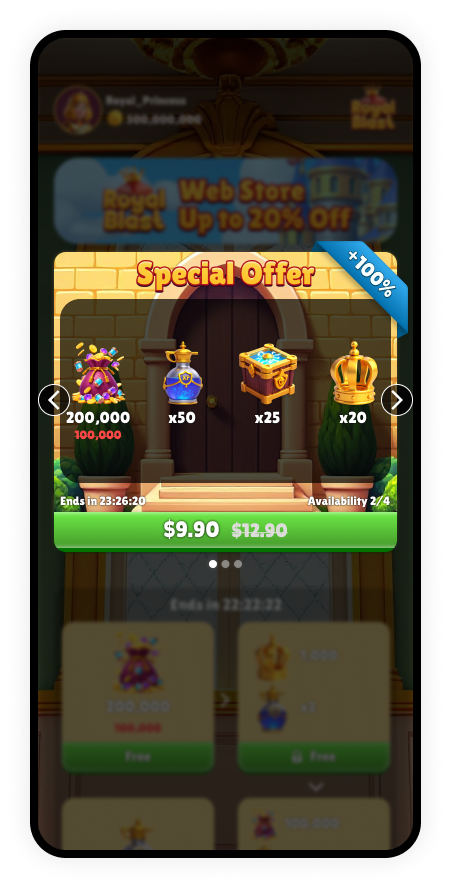
This documentation will focus on explaining how to configure Special Offers using both the Offers API and the Dashboard. Special offers are permanent by default, with optional daily refresh times. Note: To create and manage popup offers such as daily bonuses and post-purchase popups, view our Popup APIs.

Manage Offers Using the Offers API

Here’s a simple overview of what you can do with the Offers API:

Key Capabilities:

  1. Create New Offers:
  • You can create new offers, specifying details like the offer name, description, type (e.g., bundle, special offer), and timing intervals.
  • You can set a schedule to define when an offer becomes active and when it should expire, providing flexibility for time-sensitive promotions or events.
  • Offers can be visually customized with UI elements such as background images and titles.
  1. Update Existing Offers:
  • Existing offers can be updated to change their details or to reflect new marketing strategies.
  • Adjustments can be made to the offer’s type, description, availability, and associated UI elements.
  1. Dynamic User Interface Integration:
  • The API supports dynamic UI elements, making it easy to update the look and feel of offers without hardcoding these elements into your app.
  • Elements such as whether the offer is active, cooldown periods between uses, and player segmentation for targeted offers are managed dynamically.
  1. Player Segmentation:
  • Offers can be targeted to specific player segments, like new users or high spenders, ensuring that promotions are relevant to the right audience.
  1. Product Sequences and Availability:
  • For rolling offers or promotions featuring multiple products, you can specify the sequence of products and their availability.
  • This helps in managing complex offers that involve multiple steps or stages.
  1. Metadata and Security:
  • Each request and response includes important metadata, like publisher tokens and offer IDs, to ensure secure and accurate data handling.
To schedule a Promotions click on the Schedule tab at the top of the Promotion page. Configuration:
  1. Availability Refresh Interval:
    • Set the interval at which the availability of the offer refreshes.
  2. Exact Refresh Time:
    • Specify the exact time when the availability will reset each day.
  • Product Name: Select a product to add from the drop-down list.
  • Product Types: Choose how the product is displayed in the offer:
    • Main: A top-level product displayed prominenly in the offer.
    • Sub: A related offer that appears under a Main offer.
    • Web Only: Select Web Only to promote items that are available exclusively on the Web Store.
      To get access to this feature, contact your account manager.
  • Quantity: Enter the number of units of this product included in the offer.
Click Save after you’ve finished making your changes.