
This feature currently supports Bundles, Special Offers, and Rolling Offers.
Badge types
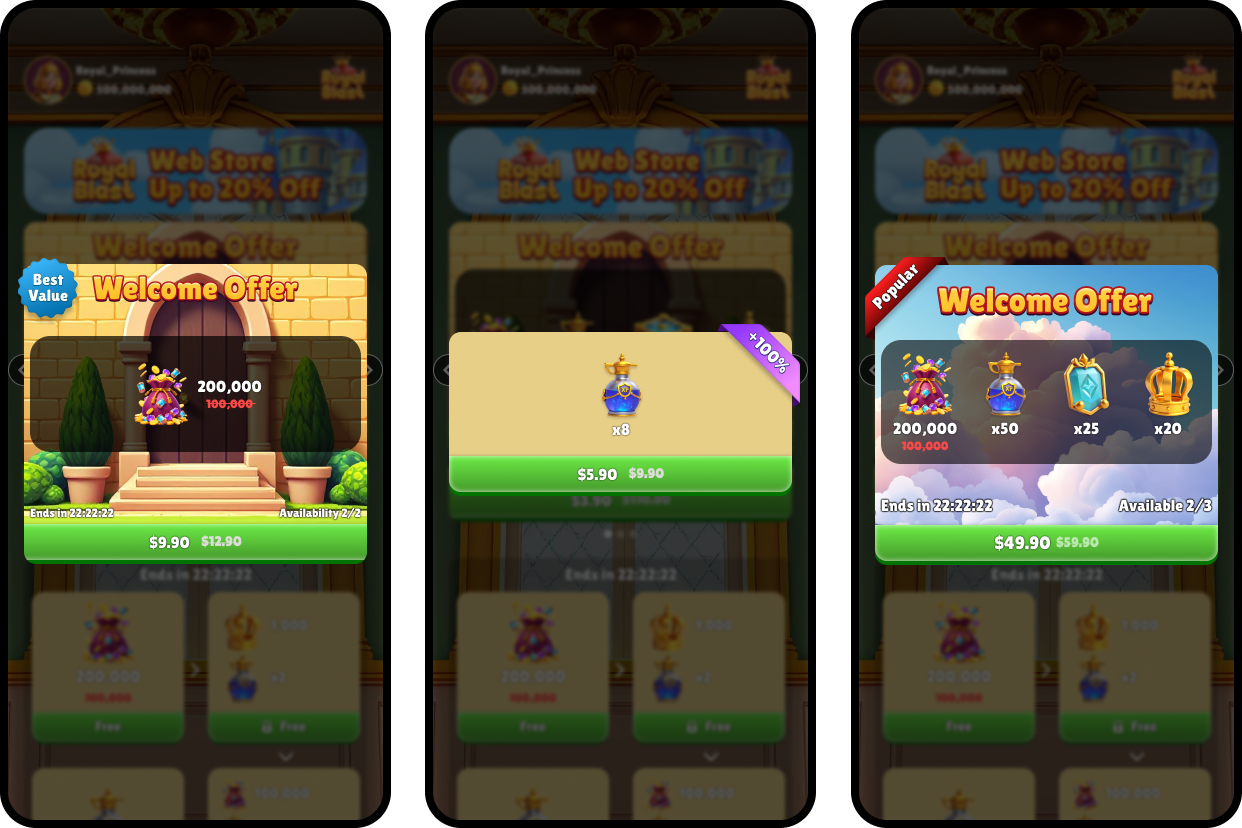
There are three types of Badges you can add to an offer:- Emblem: A custom Badge image that you upload. This option is ideal for creating a fully branded Badge using your game logo, icon, or stylized promotional artwork.
- Ribbon: A text-based Badge where you define the text, text color, and background color. This Badge isn’t enabled by default. To enable this feature, contact your account manager.
- Sale: An automatic Badge that appears when you add a product sale to an offer. It displays the sale amount and type. For example, if the product sale amount is 15 and the type is Percentage, the badge displays 15%. To customize this Badge, contact your account manager.
Create a Badge
To create a Ribbon or Emblem Badge:- In the Publisher Dashboard, go to Studio > Badges.
- Click Add New Badge. The Badge editor opens.
-
Complete the following fields:
- Name: A descriptive name for the Badge.
- External ID: A Badge ID.
- Type: Select either Ribbon or Emblem.
- Ribbon: Enter a text value and select a background and text color.
- Emblem: In the Image field, upload a 1:1 image file, or select an existing image from dropdown.
If you provide an external image URL, Appcharge saves and uses the URL as-is. Appcharge doesn’t download, copy, upload, or host the image. If you use an external image URL, host the image on your own infrastructure and keep it available at the provided URL.We recommend uploading image files instead of using external URLs when possible. Appcharge hosts uploaded files on its CDN. - Click Save. Your new Badge is added to the Assets Library, and is now able to be assigned to an offer.
Assign a Badge to an offer
Once you’ve created a Ribbon or Emblem Badge, you can assign it to a Bundle, Special Offer, or Rolling Offer.Sale Badges are automatically added when you configure a product sale.
- Go to Offers and click on Bundles or Promotions.
- Create a new offer, or select the offer you want to assign the Badge to.
- In the Badges field, click the drop-down menu to select the Badge you want to assign.
- Under Sale & Discounts configure a product sale:
- Min Product Sale: Enter a sale value for the product. Setting this field adds a Sale Badge to your offer.
- Type: Click the drop-down menu to select Percentage, Multiplier, or Fix Amount.
- Click Save.
- Go to Offers > Rolling.
- Create a new offer, or select the offer you want to assign the Badge to.
- Click on the Configuration tab and in the Offer field deselect the Set as Free box. The fields for the Badge settings will appear below.
- Fill out the following fields:
- Min Product Sale: Enter a sale value to automatically add a Sale Badge.
- Emblem Badge: Click the drop-down menu to select the Badge you want to assign.
- Click Save.