
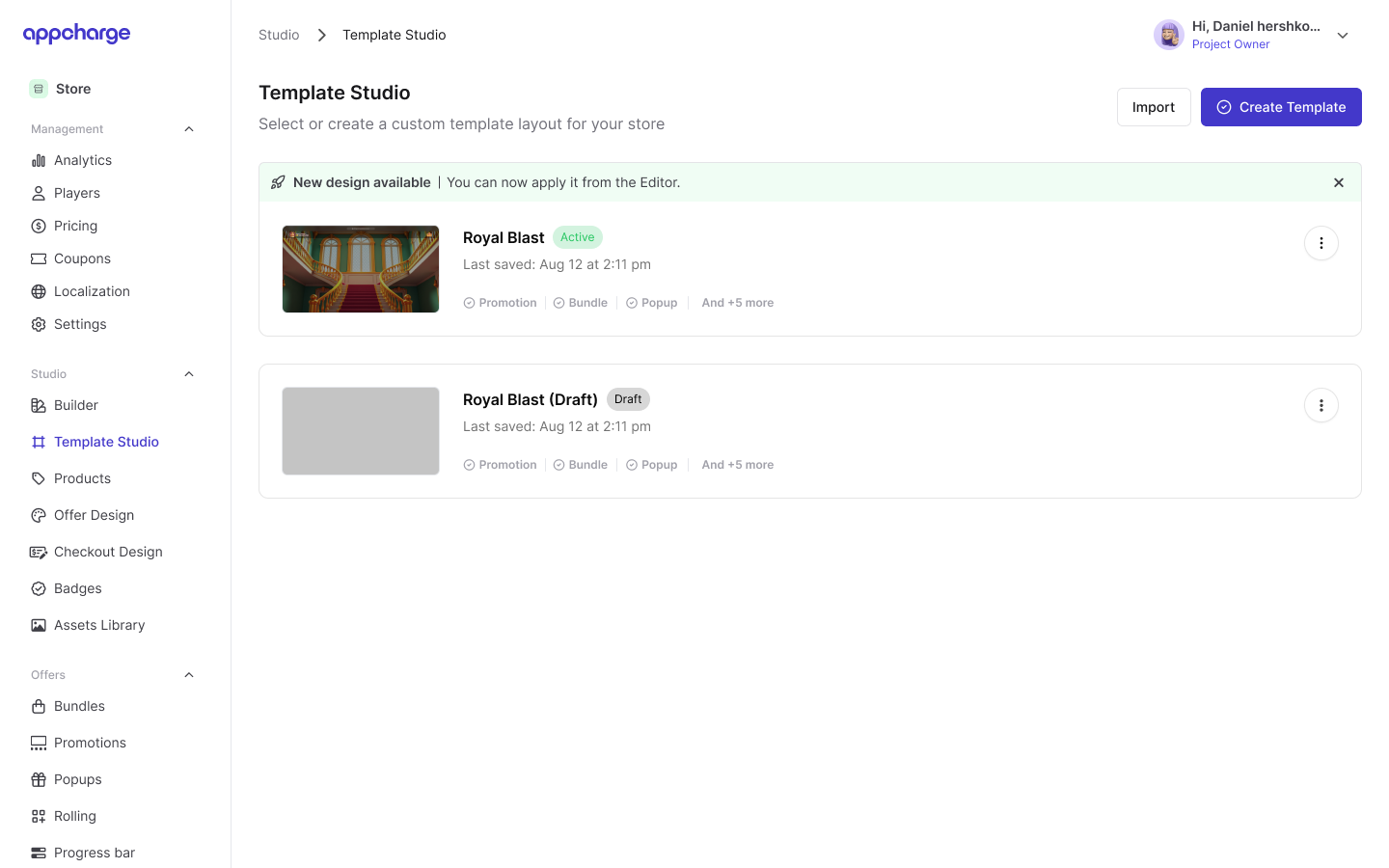
Create a new template
To create a template:- Go to Studio > Template Studio, and then click Create Template. The Template Editor opens.
- In the Top Bar, click the Template Name placeholder on the left, and enter a name for the template.
- In the Left Sidebar, configure the Blocks you want, and their specific settings, and reorder or hide blocks as needed. To learn more about Blocks and how to edit them, see the Template Editor.
-
In the Right Sidebar, use the Brand Kit to configure your global design settings: font, button colors, logo, background images, and other brand assets.
If you provide an external image URL, Appcharge saves and uses the URL as-is. Appcharge doesn’t download, copy, upload, or host the image. If you use an external image URL, host the image on your own infrastructure and keep it available at the provided URL.We recommend uploading image files instead of using external URLs when possible. Appcharge hosts uploaded files on its CDN.
- Configure the Add To Home Screen and Back To Game buttons as needed.
- In the top-right corner, click Save.
Activate and deactivate a template
Activating a template makes it live on your web store. You can only have one active template at a time. To deactivate a template, you must activate a different one. To activate a template:- Go to Studio > Template Studio.
- Click the ellipsis next to the template you want to activate, and then click Activate.
Activating a template replaces your current web store design and automatically deactivates the previously active template. You can switch to another template at any time.
Edit a template
To edit an existing Template:- Go to Studio > Template Studio.
- Click the ellipsis next to the template you want to edit, and then click Edit.
- Modify the template as desired.
- In the top-right corner, click Save.
Duplicate a template
To duplicate a Template:- Go to Studio > Template Studio.
- Click the ellipsis next to the template you want to duplicate, and then click Duplicate. The duplicated template appears in the template list.
Export a template
Exporting a template downloads its configuration as a JSON file. Note that assets (images) are not included in the export and must be re-uploaded manually in the target environment. To export a template:- Go to Studio > Template Studio.
- Click the ellipsis next to the template you want to export, and then click Export. The exported template downloads to your device.
Import a template
Importing a template creates a new template instance from a previously exported JSON file. After importing, re-upload any assets in the Brand Kit and External Buttons tabs before activating. To import a template:- Go to Studio > Template Studio.
- In the top-right corner, click Import.
- Upload a JSON file containing the template data, and then click Import.
Delete a template
You can only delete draft templates. The active template cannot be deleted.
- Go to Studio > Template Studio.
- Click the ellipsis next to the template you want to delete, and then click Delete.
- In the confirmation popup, click Delete.