
Test and preview web store personalization
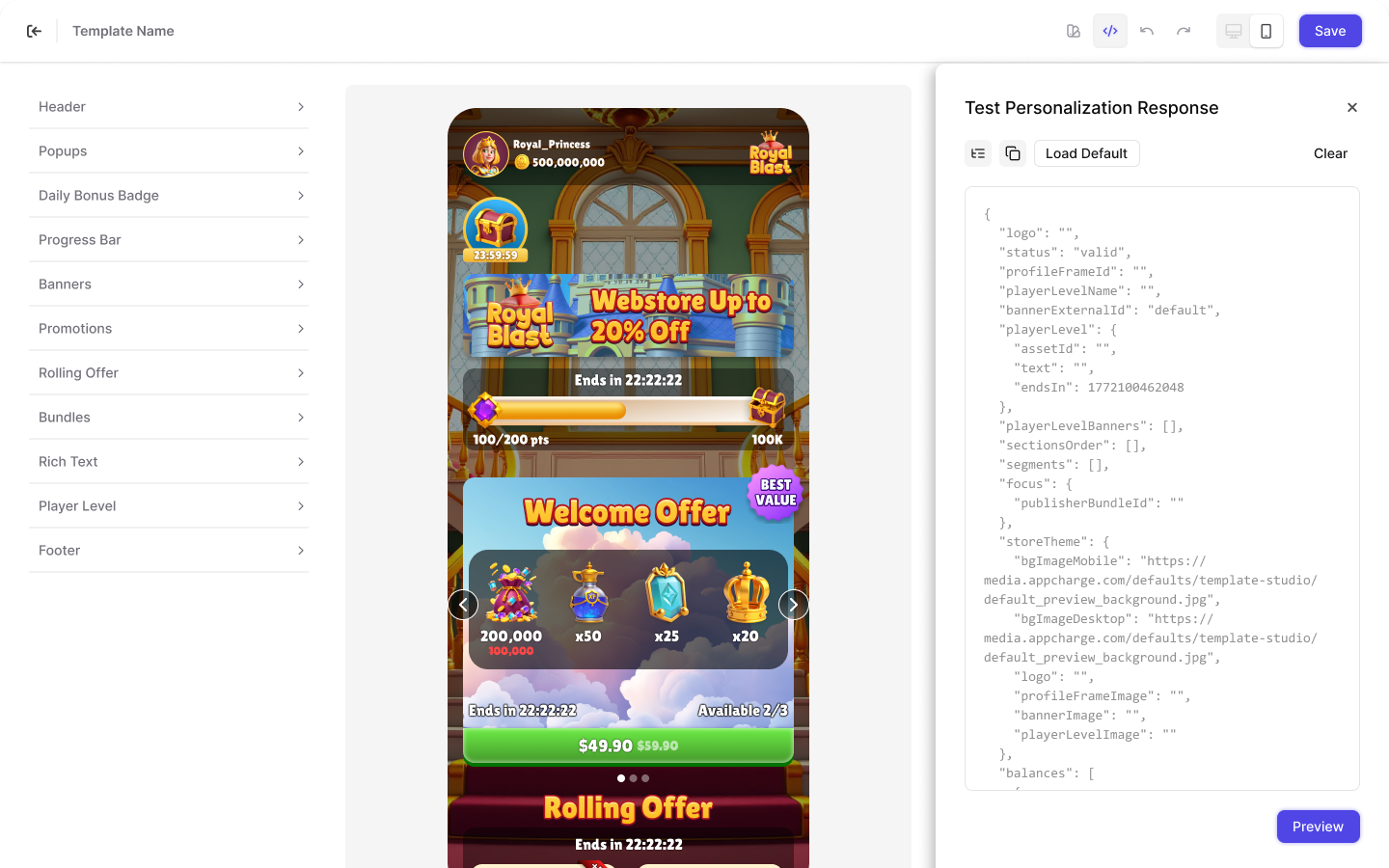
- In the Top Bar, click the Code icon to open Test personalization response. A code editor opens with a sample response from the Personalize Web Store Callback.
- Either edit the existing code, or click Clear to remove it and paste your own JSON response values.
-
(Optional) Use the editor tools to format or copy the JSON:
- Format icon: Automatically formats the JSON.
- Copy icon: Copies the JSON from the editor.
- Click Preview to render the store preview in the Center Panel using the provided personalization data.